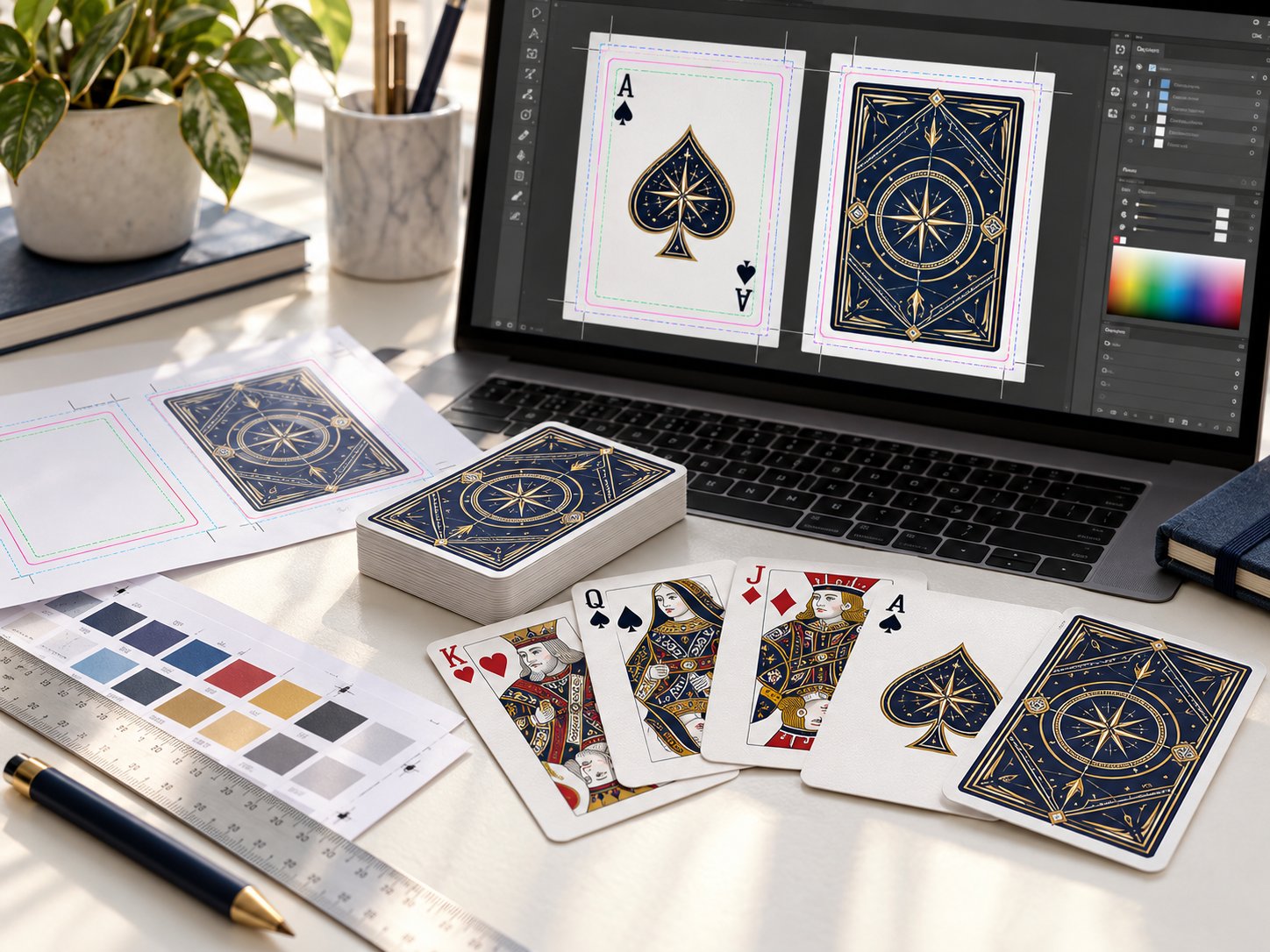
A playing card template is a print-ready file that shows the exact trim line, bleed area and safe zone for one card, so your artwork prints edge to edge without losing anything to the cutter. To use one, open the template in your design tool, extend background art to the bleed line, keep text and indices inside the safe zone, then export a CMYK file at 300 DPI. Mr. Playing Card offers free poker, bridge, jumbo, 3 x 5 in, 3.875 x 6 in and tuck box templates on its free playing card templates page.
Quick answer: Download the template that matches your card size, place it as a locked guide layer, and design on top of it. A poker card trims to 2.5 x 3.5 inches; Mr. Playing Card's template adds 0.125 inch of bleed on every side, so your artboard is 2.75 x 3.75 inches. Keep text and logos 0.125 inch inside the trim, export a 300 DPI CMYK PDF, and send it in for a free human file review and digital proof before anything prints.
What is a playing card template?
A playing card template is a dieline: a guide file that marks where the card will be cut and how far art must extend. It is not a finished design. It tells you the shape and the margins, and you supply the artwork.
Every good template marks three lines:
- Bleed line: the outer edge of your artboard. Background color and images must reach this line so no white sliver shows if the cut drifts slightly.
- Trim line: where the blade cuts. This is the finished card size.
- Safe zone: an inner line. Anything that must not be cut, such as card indices, names, logos and rules text, stays inside it.
Bleed is extra artwork that extends past the trim line and is cut away after printing. Adobe's own InDesign tutorial notes that a 0.125 inch bleed is the standard value for designs that print to the edge, which is exactly what playing card printers ask for. See the glossary entries for bleed and the safe zone if you want the longer definitions.
Which playing card template size do you need?
Pick the template for the card size you plan to print. The size decides the template, the stock options and the price table, so settle it first.
| Card size | Trim size | Artboard with 0.125 in bleed | Common use |
|---|---|---|---|
| Poker | 2.5 x 3.5 in | 2.75 x 3.75 in | Most card games, casino style decks, promo decks |
| Bridge | 2.25 x 3.5 in | 2.5 x 3.75 in | Bridge, pinochle, decks for smaller hands |
| Jumbo | 2.75 x 4.75 in | 3 x 5 in | Large print decks, affirmation and display decks |
Mr. Playing Card's free templates cover poker, bridge, jumbo (2.75 x 4.75 in), 3 x 5 in and 3.875 x 6 in cards, plus poker and bridge tuck box dielines. An All Card Templates PDF puts every card size in one document. If you are still choosing a size, the playing card sizes guide compares them side by side.
How do you use a playing card template step by step?
The process is the same in any design program: place the template, build your art on separate layers, then hide the guides and export.
- Download the right file. Grab the PDF for your card size from the templates page. Each one has the bleed, trim and safe zone pre-marked.
- Open or place it as a locked guide layer. In Illustrator, InDesign, Affinity Designer or Photoshop, put the template on its own top layer, lock it, and set it to a low opacity or multiply so you can see through it.
- Set your document to CMYK at 300 DPI. CMYK is the four-color ink model presses use. Building in RGB and converting at the end can shift bright blues, greens and purples.
- Design the card back first. The back is one design repeated across all 54 cards, so it sets the look of the deck. Extend the pattern or background all the way to the bleed line.
- Build the faces. Place indices, pips and art inside the safe zone. Duplicate the artboard for each card so the corner positions stay identical across the deck.
- Hide the template layer and export. Export a high-resolution PDF (or one file per card) with the bleed included and the guide layer turned off.
- Send the files for review. Mr. Playing Card does a free human file review and sends a free digital proof, usually in about one business day.
How do you design the back and faces on a template?
Treat the back and the faces as two different jobs. The back is mostly about pattern and bleed; the faces are mostly about safe zones and consistency.
Card back: Keep it symmetrical or rotationally balanced if the deck is for play, so players cannot tell a card's orientation from the back. Full-bleed patterns forgive small cutting variation; a thin border close to the trim line exaggerates it, so either give a border at least 0.125 inch inside the trim or skip it.
Card faces: Corner indices sit just inside the safe zone so they stay readable when cards are fanned. Use the same index position on every card. For a custom card game with rules text, set a minimum font size you can read at arm's length and leave space between text and the safe zone line.
A standard deck is 54 cards (52 plus two jokers), and Mr. Playing Card prints full-color custom backs and custom or standard faces on all 54 with every order. If you only want a custom back, you can pair it with standard faces and skip designing 54 fronts.
What software works with playing card templates?
Any program that opens a PDF and exports CMYK works. Mr. Playing Card's templates are PDFs, so they open directly in Adobe Illustrator, InDesign, Photoshop, Affinity Designer and CorelDRAW.
- Illustrator or Affinity Designer: best for vector art, crisp indices and patterns that scale cleanly.
- InDesign: good for text-heavy game cards where you want consistent styles across many cards.
- Photoshop: good for painted or photo-based art. Work at 300 DPI at full artboard size from the start.
- Canva or other browser tools: fine for simple decks. Set a custom size that includes the bleed (2.75 x 3.75 in for poker) and download as "PDF Print" so the file keeps its full resolution.
If you would rather not use design software at all, the design your own tool lets you build a deck online.
What mistakes ruin a playing card file?
Most rejected files fail for the same few reasons, and all of them are easy to catch before upload.
- Art stops at the trim line. Without bleed, any drift during cutting leaves a white edge. Always fill to the bleed line.
- Text or logos too close to the edge. Anything outside the safe zone can be trimmed. Keep it 0.125 inch inside the trim.
- Low resolution images. An image that looks fine on screen at 72 DPI prints soft. Place images at 300 DPI at the size they will print.
- RGB color mode. Neon greens and electric blues on screen may print duller in CMYK. Convert early and judge color on the proof.
- Template left visible. Exporting with the guide layer on prints the lines onto your cards. Hide it before export.
Mr. Playing Card's pre-press team checks every file for these problems and helps fix bleed, safe zone and dieline issues at no charge, so a mistake is caught on the proof, not on press.
Do you need a template for the tuck box too?
Yes, if you want printed packaging. A tuck box is the folding paper box a deck slides into, and its dieline has flaps, glue areas and fold lines that are harder to guess than a card. Mr. Playing Card's default packaging is shrink wrap; a custom tuck box (350 GSM, 16 pt C2S, full color) is a per-deck add-on, and the poker and bridge tuck box templates are on the same templates page. The poker tuck box template walkthrough covers each panel.
What happens after you send your files?
After upload, Mr. Playing Card reviews your files by hand, sends a digital proof in about one business day, and starts production only after you approve it. Paper decks run 7-10 business days from proof approval, plus 2 to 5 business days for domestic ground shipping. The minimum is 15 decks for standard poker and bridge decks on paper stock, and most decks are printed on 300 GSM standard black core stock, a paper with a dark inner layer that blocks light so the faces cannot be read through the back.
Next steps
Download the file for your card size from the free templates page, build your back and faces, and export a 300 DPI CMYK PDF. When the file is ready, get an instant per-deck quote for your quantity and stock, or start from the custom poker card options.